 ThirtyFile
Sharing
There are two ways to share: with people who have an account, and with anyone through a link.
Share with colleagues
Right-click a folder or file and choose Share with…. Type a username or group, choose what they may do, and optionally a date when the access ends, then click Add. Someone whose own access here ends on a date can't give themselves (or a group of theirs, or everyone) access that lasts longer.
The item appears under Shared with me in their menu, and they are told under the bell (and by email, if it is set up): see Notifications.
Roles
| Role | Can |
|---|---|
| Viewer | Browse, preview and download |
| Editor | Also upload, edit, delete and create share links, each only if their account is allowed to (Control panel › Users) |
| Manager | Also manage members and sharing, if their account is allowed to share |
| Owner | Also delete the space, if their account is allowed to delete |
Share with a link
Right-click an item and choose Create share link, or select it and click Create share link on the toolbar. Anyone with the link can view and download, without an account, unless you choose otherwise.
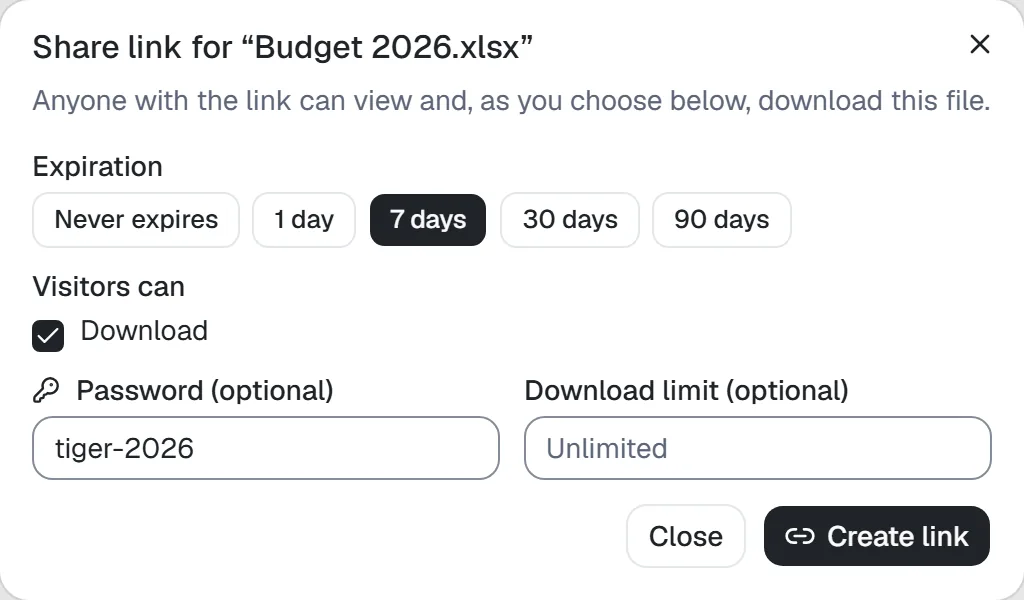
- Expiration: the link stops working after 1, 7, 30 or 90 days, or never.
- Password: visitors must enter it before they see anything, and again after a day. It must be as long as account passwords (Control panel › General). After ten wrong passwords for a link, each further try has to wait longer, from any address. Send the password separately from the link.
- Download limit: the link stops working after this many downloads. A download that is resumed, or a video that is skipped through, counts once; each file of a folder counts on its own.
- Visitors can: whether they may download, and for a folder, whether they may upload files. See below.
To change a link's password, expiry, download limit or what visitors can do, click Edit link next to it. The address stays the same. After a new password, people who opened the link before must enter the new one.
Receive files with a link
To collect files, for example from customers, create a link to a folder and tick Upload files. Visitors then get an Upload button and can drag files onto the folder.
- Tick Only upload as well, and visitors see nothing of what is in the folder and can't download anything; they only get a box to send files into the folder itself. A dropped folder arrives as its files, and when a name is taken the file is kept under a new one without telling the visitor.
- Uploaded files belong to you, count toward the space's size, and follow the usual rules for names and the upload size limit. A file whose name is taken gets a number, like
report (1).pdf. - Each upload is recorded in the activity log, under your name with Through share link, and in the link's access log. You get a notification when files arrive (Notifications).
- Uploads only work while you can still change the folder. When you lose that permission, or the folder is moved out of the shared folder, uploads through the link stop.
- Unfinished uploads through one link can hold up to 20 GB at a time. An upload through a link that receives nothing for a day is dropped, and the visitor sends that file again.
- An unfinished upload can only be continued from the browser that started it. Other visitors of the same link can't see, continue or cancel it.
Links for viewing only
Untick Download and visitors can only preview files: the download buttons and the ZIP download are gone, and the server refuses downloads through the link.
Your links
My share links in the menu lists every link you created, with its expiry date and how often it was used. Select a link to copy, edit or delete it; Delete link stops it working right away.
Switch the list to All links I can manage to also see links other people made in spaces you manage, and on files you own. You can edit and delete those links too, and see who opened them. The share dialog and the details pane of an item show the same links.
For administrators
Control panel › All share links lists every public link, in every space, with who created it. Filter by space, by creator, and by whether the link still works, then edit or delete links, or open their access log. Links in other people's personal spaces can only be deleted, and their address and item aren't shown (What administrators can see).
Under Control panel › General › Share links, set the rules for links:
- Allow public share links: when off, no one can create links, and every existing link stops working until you turn it back on. The links aren't deleted.
- Require a password: new links must have a password, and passwords can't be removed.
- Longest expiry: new and changed links must expire within this many days.
The last two rules apply to links created or changed afterwards. Links created earlier keep working as they are; find them in All share links and edit or delete them.
Spaces
A space is a drive with its own members and size limit.
- My files: your personal space. Only you can see it, unless you share something from it.
- All files: the company-wide space. An administrator can give it another name.
- Team spaces: for a department or project. Managers add and remove members.