 ThirtyFile
Preview and editing
Most files open right in the browser, with nothing to install.
On this page
What opens in the browser
| Type | View | Edit |
|---|---|---|
| Pictures (.jpg, .png, .gif, .webp, .avif, .svg, .bmp, .ico) | Yes | |
| Video (.mp4, .webm, .mov) | Yes | |
| Audio (.mp3, .wav, .ogg, .flac, .aac, .m4a) | Yes | |
| Yes | ||
| Word (.docx) | Yes | Yes |
| PowerPoint (.pptx) | Yes | |
| Excel (.xlsx) | Yes | Yes |
| Markdown (.md) | Yes, as a formatted page | Yes |
| Text and code, including HTML and XML (shown as text, never as a page) | Yes | Yes |
Double-click a file to open it in a tab. To go to the previous or next file of the same folder, press ← or →, or click the arrows at the right of the toolbar. The files come in the order the folder is sorted in, and once the whole folder has loaded, the status bar shows where you are (for example 3 of 12). While you are typing in a file, or the cursor is in a video's controls, the arrow keys keep their usual job there; click outside first.
Text and code files larger than 5 MB, and Word, PowerPoint and Excel files larger than 50 MB, are too large to open in the browser: download them instead.
Most browsers can't show HEIC, TIFF or Photoshop pictures, AVI, MKV, WMV or FLV videos, or WMA and AIFF sound, so these offer a download button instead. The same happens when your browser can't play a particular video or sound file.
Editing Excel workbooks
Open a workbook and click Edit workbook.
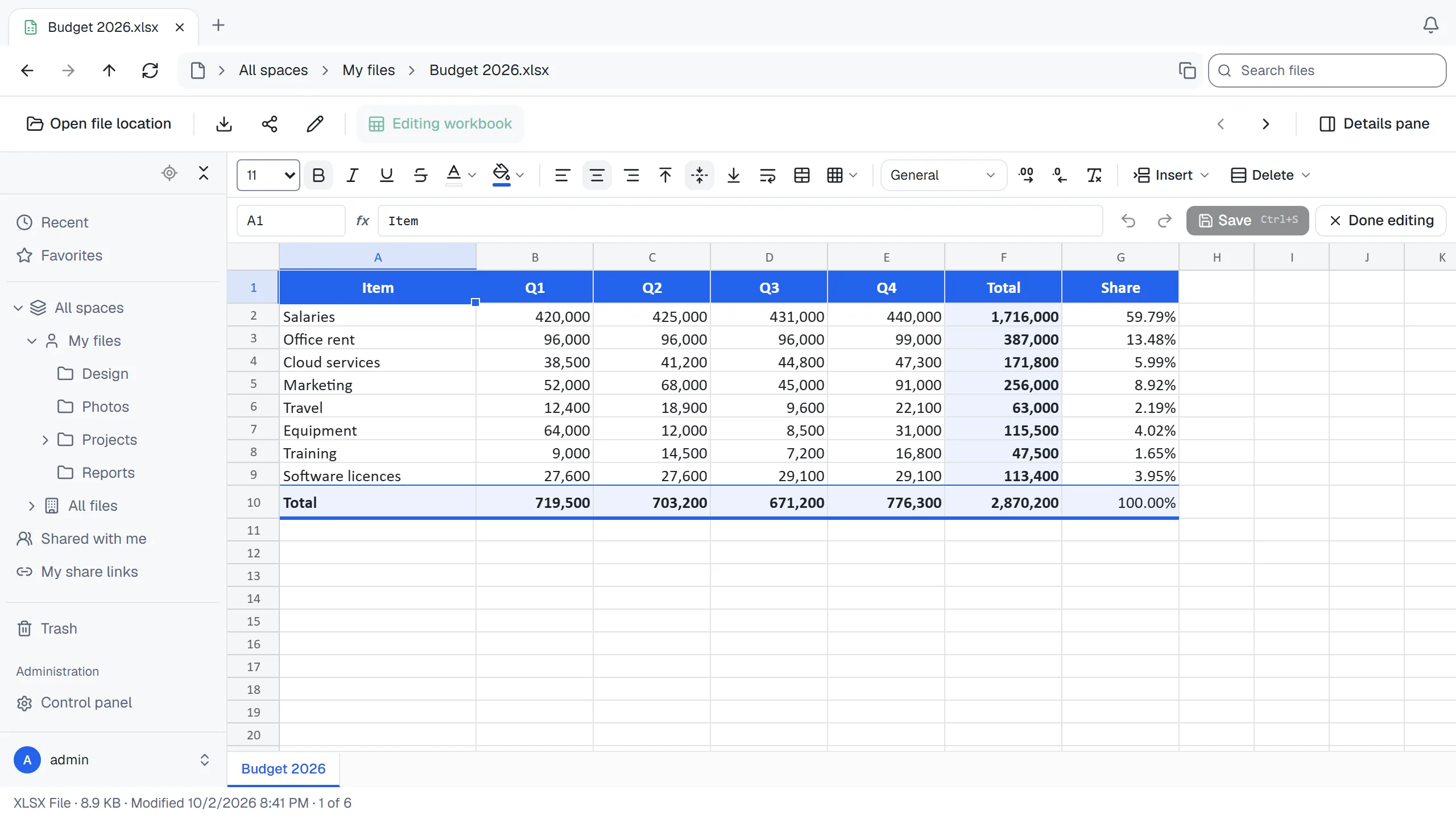
- Type in a cell, or in the formula bar. Start a formula with
=. - A formula that would have to go through millions of cells one by one, such as
COUNTIFover most of a sheet, shows#CALC!instead of slowing the page down. Saving keeps the result Excel stored for it, and Excel calculates it again when it opens the file. - Use the toolbar for bold, colours, borders, alignment, number formats and merged cells. Month and weekday names and AM/PM in dates are shown in the language you use ThirtyFile in, unless the cell's format names a language of its own. Function names stay in English, as Excel stores them in the file.
- Copy and paste works between cells, and to and from Excel on your computer.
- Cut moves cells within the same workbook. Pasting a cut selection into another workbook copies the values, formulas and formatting, and keeps the source cells. Undo reverses a move within a workbook.
- Copying, pasting or filling accepts at most 100,000 cells and about 8 million characters of clipboard text at once. A paste that would extend beyond the worksheet is refused before changing any cells. Clearing a large sparse selection visits only cells with content, up to 100,000 changes; larger changes must be split into smaller selections.
- In the formula bar and name box, Enter and Escape used by an input method to choose or cancel a candidate keep their input-method behavior. Press Enter again after composing to commit the value or navigate.
- Insert or delete rows and columns from the Insert and Delete menus. Formulas are adjusted for you.
- Press Ctrl + Z to undo and Ctrl + S to save. Undo goes back up to 200 steps, of which at most 20 can be row or column inserts and deletes.
- With a screen reader, move with the arrow keys: the address and value of the cell you move to (or the range you select) are read out.
In a workbook that is only being viewed, screen readers find the cells shown on screen in a table after the sheet. Scroll the sheet with the arrow keys and the table follows.
Saving changes only the cells you edited. Charts, pictures and everything else in the workbook stay as they were.
Editing Word documents
Open a document and click Edit document. It is shown as one long page, with its fonts, sizes, spacing and list numbers. Page breaks aren't shown while editing, and headers and footers are edited on their own.
- Type, delete and select text as in any editor. Enter starts a new paragraph with the same settings, Shift + Enter starts a new line, and Tab types a tab (in a table, it moves to the next cell).
- New text takes the formatting of the text it is typed into: a word typed inside bold text is bold.
- Pasting adds plain text. Each line of it becomes a paragraph.
- Click a link to put the cursor in it. Ctrl + click (⌘ + click on a Mac) opens it.
- Text in table cells is edited the same way. Tab moves to the next cell and Shift + Tab to the one before. Borders and shading stay as they are.
- To add or delete rows and columns, put the cursor in a cell and use Insert or Delete in the toolbar. A new row or column copies the settings of the one next to it, and a merged cell next to it stays merged. Deleting the last row or column deletes the table. Ctrl + Z right after undoes the change.
- To merge cells, select them by dragging across them or by Shift+clicking another cell, then choose Cells › Merge cells. The selection grows to whole merged cells, and the merged cell holds the text of all of them. Cells › Split cell… splits the cell under the cursor into columns of equal width and into rows; its text stays in the first one. Ctrl + Z right after undoes these too.
- Borders and Shading in the toolbar change the cells selected together, or the cell under the cursor. The cells next to them get the same line on the side they share. To make a column wider or narrower, drag the border on its right: the column next to it gives or takes the difference, and the table's right edge changes the table's width.
- Fields, such as page numbers and dates, are shown shaded and kept as they are: the text around them can be edited, and a field can be deleted as a whole. Pictures, tracked changes, comments, footnotes and equations are shown as they are and can't be changed here, nor can the paragraphs they are in. Pointing at one outlines it. A table is never joined with the paragraph next to it, but selecting across it and deleting removes it.
- The second row of the toolbar sets the paragraph style, the font, the font size, bold, italic, underline and strikethrough (also Ctrl + B, Ctrl + I and Ctrl + U), the font color, the highlight, the alignment and the line and paragraph spacing, and shows those of the text at the cursor. A font or font size with nothing selected goes to the word at the cursor; a style, alignment or spacing to every paragraph the selection touches. An East Asian font (such as Microsoft JhengHei) also goes to Chinese, Japanese and Korean text; other fonts leave that text's font as it was. Line spacing goes from 1.0 to 3.0 lines, and the space added before or after a paragraph is 12 points. Ctrl + Z undoes bold, italic, underline, strikethrough, color and highlight step by step, and a style, font, size, alignment or spacing right after it was set.
- Bulleted list and Numbered list make the paragraphs the selection touches a list, or plain paragraphs again when they already are one. A numbered list right after another continues its numbering; any other starts at 1. Increase indent and Decrease indent move a list item a level in or out (also Tab and Shift + Tab at its start), and another paragraph's indent by half an inch.
- Header and footer at the top shows a header or footer of the document instead of the body, to edit the same way; Back to document goes back. The list also names first-page and even-page headers and footers, and those of later sections, when the document has them. A document without a header or footer gets one with Add header or Add footer: it shows on every page. Ctrl + Z right after takes it away again. Insert page number and Insert number of pages in the same menu put the field at the cursor, in a header, a footer or the body; type around them, for example Page and of. Different first page gives the first page of the section a header and footer of their own (the section of the header or footer open, or the first one), and Different odd and even pages gives even pages theirs, in the whole document. Turning one on adds them empty and opens the new header; turning it off keeps them, unused, as Word does.
- Press Ctrl + Z to undo and Ctrl + S to save. Changes not saved yet are kept when you go to another file or tab and come back.
Saving changes only the paragraphs you edited. Everything else in the document stays as it was, and its previous content is kept as an earlier version.
Editing text files
Text and code files open in an editor with colours for most programming languages. Press Ctrl + S to save.
Switching tabs while a save is still on its way keeps each file's edits separate. Text typed after saving started stays unsaved when the save finishes; save again to store it. Discarding a draft does not bring it back when an earlier save completes.
A file ThirtyFile doesn't recognise, such as Dockerfile, README or a file with an unusual extension, shows Preview isn't available for this file type. If it holds text, click Open in text editor to read and edit it there. This doesn't rename the file or change its type: it is only saved when you save it. Default view goes back; unsaved changes are kept and come back when you open the editor again.
- You can only save when you may change the file. On a share link, the button shows only when the link allows downloading, and the text is read-only.
- A file that doesn't look like text (a program, a picture with a strange extension) opens read-only, so saving can't damage it. So does text in an encoding the editor can't write back. UTF-8 and UTF-16 encodings and Windows line endings are preserved. Big5 can be read, but saving converts it to UTF-8, as the editor warns; opening it alone does not change the stored file.
- Files larger than 5 MB don't open in the editor: download them instead.
Markdown
Markdown files open as a formatted page: headings, lists, tables, task lists and code. Switch to Edit above the page to change the text (Source when you may only view the file), and back to Preview to see the result, unsaved changes included.
The page is shown safely: HTML written in the file is not run and can't take on the look of ThirtyFile, links open in a new tab, and only pictures embedded in the file itself are shown. Pictures from other websites are left out, so opening the file doesn't tell those sites about it.
Thumbnails
In the icon views (Large icons, Medium icons and Tiles), pictures, PDFs and videos show a thumbnail. The server makes those of pictures. For PDFs (the first page) and videos (a frame near the start), the first browser of someone who may change the file makes the thumbnail and keeps it on the server, so everyone who can open the file in that space sees it from then on. People who may only view it see one made in their own browser until then. Videos your browser can't play, and PDFs larger than 200 MB, keep their icon. Thumbnails are kept in data/thumbs: those of a file in the content store go when its content is deleted for good, and any thumbnail nobody was shown for 30 days is removed (it is made again when someone looks at the file).
When two people edit the same file
If someone else saved the file while you were editing, your save is stopped and you are told, so nobody's work is overwritten without notice. Copy your changes, reload the file, and add them again.