ThirtyFile
Working with files
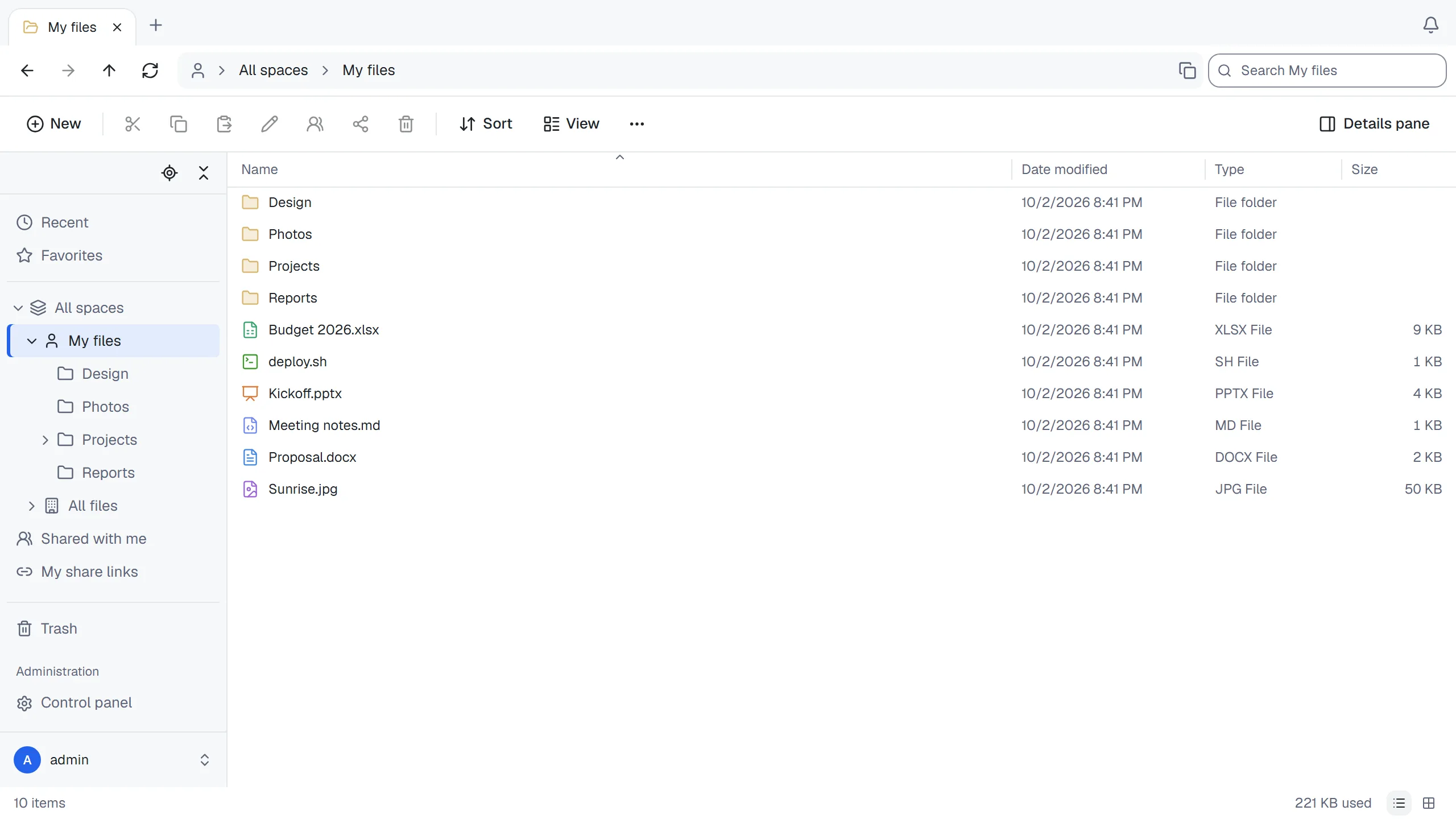
ThirtyFile works like File Explorer, or like a Mac's Finder in the Mac style. This page lists what you can do and the shortcuts that make it quicker.
On this page
Finding your way around
- Menu on the left: recent files, favourites, your spaces, items shared with you, your share links, the trash, your smart folders and your tags.
- Tabs: open several folders or files side by side. Click + for a new tab, or middle-click a folder to open it in one.
- Address bar: shows where you are. Click any part of it to go there, or click the empty space beside the path (or press Ctrl + L) to see the full path, copy it, or type or paste another path and press Enter to go there (see Paths).
- Search: finds items whose name contains what you type, in the folder you are in and its subfolders (from Recent, Favorites and other lists: everywhere you have access). Letter case doesn't matter, in any language; accents don't matter either once you type three or more characters. On the results page you can widen the search to everywhere, and filter by type, date modified, size and tag. At most 300 results are shown; the page says so when there are more. Save as smart folder keeps the search (see Smart folders).
- View: choose how the list looks (see Views, columns and groups). The two buttons at the bottom right switch between Details and Large icons.
Recent lists the files you uploaded, edited or opened, newest first, wherever they are: your own files, and files of others in shared spaces and folders. Opening means viewing a file in the browser (the viewer, the editor or the preview pane); downloads and file clients using an app password don't count. Files you can no longer open, and files in the trash, are left out.
Large folders
A folder with thousands of items opens with its first items right away, and loads the rest as you get to them: the part you scroll to, the part End or Page Down goes to, or where you drag the scroll bar. Rows not loaded yet show as grey lines for a moment, and the status bar shows Loading more items… meanwhile. The status bar counts every item of the folder, loaded or not. Only the parts near where you are stay loaded, so a folder of a hundred thousand items doesn't slow your browser down.
Selecting works on the whole folder, also on items not loaded yet:
- Ctrl + A (or Select all) selects every item of the folder. Ctrl + click leaves items out again; the status bar says how many are selected.
- Shift + click, or Shift + End, selects everything between the two items, however far apart they are.
- Moving, copying, cutting and pasting, dragging, adding to favorites, tagging, moving to the trash and deleting permanently then take every selected item. ThirtyFile does it a thousand items at a time, and a message at the bottom shows how far it got. Such a large change can't be undone from its message.
- A download or a ZIP file takes up to 10,000 items at once: for more, download the folder itself.
- The details pane shows how many items are selected; their size shows when the whole folder is selected.
Typing the start of a name goes to the next matching item among those loaded. Going up (or back) to a large folder shows the folder you came from and selects it, wherever it is in the list. Grouping a large folder by date or type (see below) loads the whole folder, so every group is complete.
Views, columns and groups
The View menu has the same views as File Explorer, and Columns:
- Large icons and Medium icons: thumbnails of pictures, PDFs and videos (see Thumbnails) with the names below them.
- List: small icons and names side by side in columns, to see many items at once.
- Details: one item per row, with columns.
- Tiles: a thumbnail with the name, type and size beside it.
- Columns: a column for each folder level, from the top of the space down to the folder you are in. Selecting a folder shows what it holds in the next column to the right; selecting a file shows a preview column with its picture, type, size and dates, and buttons to open, download or share it. Not offered on phones, which already show one folder at a time.
In Columns, ↑ and ↓ move within a column, → goes into the selected folder's column, and ← goes back to the column before; typing the start of a name goes to it. Clicking an item in another column goes to that column. Going back keeps the columns you opened to the right, until you select something else. Selecting, opening, renaming and deleting work as in the other views, a large folder loads a part at a time in its column too, and you can drag items onto a folder in any column, or onto the empty space of another column, to move them there. Drag the right edge of a column to make it wider or narrower (double-click it to give the column its usual width again); the widths are remembered in this browser until you sign out. Group by doesn't apply to this view.
Files without a thumbnail show an icon for their kind. Programming languages and data formats each have their own (JSON, Rust and Go look different), and so do the files of common tools, recognised by their name even without an extension: Dockerfile, Makefile, .env, .gitignore, package.json, lock files, LICENSE and README. Fonts, disk images, installers, databases, e-books, design files, 3D models and certificates have icons too. In Details, point at the Type column to see what kind of file it is. A file ThirtyFile doesn't recognise keeps the plain file icon.
In Details, drag the edge of a column header to make the column wider or narrower (or select the edge with Tab and use the arrow keys); double-click the edge to give it its usual width again. Right-click a column header, or choose View › Columns, to choose the columns: Date modified, Date created (hidden at first), Type, Size, Tags (hidden at first), and where a list has them Location and Uploaded by. Restore default columns undoes your changes. When the list is too narrow for all the columns (with the details pane open, for example), Type and then Size are left out before the list scrolls sideways. On a phone the list shows the name and size only.
Sort orders the items by name, date modified, date created, type or size, from A to Z or the other way; clicking a column header does the same. Folders always come first. Names sort as in File Explorer: letter case doesn't matter and numbers count by their value (File 2 before File 10). Other characters sort by their Unicode code point, so Chinese and Japanese names follow Unicode order (hiragana, then katakana, then Chinese characters), not their pronunciation or stroke count. The order is the same in every language and for everyone, which keeps long folders loading page by page without gaps or repeats.
View › Group by puts the items in groups, each under a heading with the number of items in it:
- Type: folders first, then a group per kind of file.
- Date modified: Today, Yesterday, Earlier this week, Last week, Earlier this month, Last month, Earlier this year and A long time ago (weeks start on Monday).
Within a group, items keep the order the list is sorted in. Sorting the other way by the same thing (oldest first, or by type from Z to A) turns the groups around too. The view, the columns and the grouping are remembered in your browser for every folder.
Paths
A path names a folder or file the same way everywhere: in the address bar, and over WebDAV. It starts at the top, where all your spaces are, for example /My files/Reports/2026.xlsx:
/is All spaces.- My files is your personal space (your administrator may not have given you one). The company space (All files, unless your administrator renamed it) and your team spaces go by their names. If two have the same name, the later one gets a number, such as Projects (2), and the same number is used on WebDAV.
- Shared with me holds folders and files other people shared with you from spaces you aren't a member of:
/Shared with me/Plans/Q1. Two shared items with the same name are numbered too.
The names ThirtyFile gives (My files, All files and Shared with me) show in the language you chose, and a path you type may use them in that language or in English. Letter case doesn't matter, \ works like /, and you can also paste a WebDAV address or a link to a page of ThirtyFile. When nothing is at the path you typed, or you don't have access to it, the address bar says so and keeps what you typed, so you can correct it. Recent, Favorites, the trash and other lists aren't in a space, so their paths can't be typed.
Administrators can also type a Control panel path: /Control panel/Storage locations, or the names shown in their chosen language. Copied paths from its address bar work too. For a path independent of the interface language, use /admin, /admin/storage, /admin/usage, or the other Control panel page addresses. These paths work in the Windows address bar and the Mac style's Go to folder. They require the same administrator permissions as opening the page from its menu. A recognized Control panel path takes priority over a space of the same name; open that space from the sidebar or paste its full page URL instead.
Uploading
- Drag files or whole folders from your computer into the list. Drop them on a folder, in the list, the folder tree, the address bar or a tab showing it, to upload them into that folder instead, or
- click New and choose Upload files or Upload folder.
Progress is shown at the bottom right, and each file starts being sent at once. When you upload more than 100 files, only the files being sent, paused or failed are listed, and the others are counted below them. Right-click the list to retry every failed file at once. While files are still uploading, the browser asks before you close or reload the page. Dropped files or folders the browser can't read (no permission, or removed meanwhile) are skipped, and a message says how many.
Preparing upload… appears before data starts moving. After all bytes are sent, Finishing upload… stays until the server confirms the file is stored. These stages show a waiting indicator instead of a completion percentage. Pause and cancel remain available.
If no upload data arrives for two minutes, the server stops waiting and the upload can resume from the bytes it already received. A long upload that keeps sending data has no overall time limit. WebDAV uploads use the same idle limit, but a failed WebDAV request must be sent again in full.
Interrupted uploads
If you reload the page, or close the tab or the browser while files are uploading, they show under Interrupted uploads at the bottom right the next time you open ThirtyFile in this browser, as they were added: an uploaded folder by its name, files picked together as one entry. The browser can't reopen your files by itself, so choose them again:
- Resume asks for the same files (or, for a folder, the same folder). Each file continues where the server has it, into the same folder, with the same answer to a name already taken. The whole file is checked before it continues, including changes that kept its size and date; reading a large file can take a while. A file is read for this check while it is being sent, so a file interrupted before it was read through starts again, as do uploads kept by an older version. Can continue says the server still has what was sent; otherwise the file starts again from the beginning.
- Files are matched by their folder path and name, then must have the same size, date and content as before. A file that changed since, or was replaced by another one of the same name, starts again instead of being joined to the old part. Files you choose that weren't part of the upload are left out, and interrupted files you didn't choose keep waiting.
- A file the server finished just before the interruption isn't uploaded twice. If the server no longer knows about a file that had been sent completely, the list says it may already be uploaded: check the folder before retrying it.
- Start over uploads the chosen files again from the beginning, and Discard drops the upload along with what the server received of it.
An upload still running in another tab isn't offered: it shows up here only after that tab is closed. Interrupted uploads are kept for 7 days, in this browser only, and only for your account (or, for visitors, for the share link they uploaded through). Only file names, folders, sizes and dates are kept, with the address of the upload on the server (for a visitor, that includes the share link), never the files themselves. Signing out removes them.
Downloading
Select one or more items and click Download. Several items, or a folder, arrive as one ZIP file. It holds the items as they were when the download started: what is added to the folders meanwhile isn't in it. If a file in a folder on the server changes size while the ZIP is being sent, the download fails rather than arrive incomplete; start it again.
Progress is shown at the bottom right. Downloads larger than 256 MB (64 MB on phones and tablets) go straight to your browser's own download list instead, so the page doesn't hold them in memory.
Preparing download… appears while a download link or the server's response is being prepared, and you can cancel during that wait. If the size is unknown, a waiting indicator replaces the percentage while received bytes are still shown. A failed preparation can be retried. Downloads handed directly to the browser, including public share downloads, show a notice: follow progress in your browser's download list.
Up to 10,000 selected items can be downloaded at once. For more, download the folder they are in: a folder counts as one item, however much it holds.
Compressing and extracting ZIP files
- Compress: select items, right-click and choose Compress to ZIP file. A compressed ZIP file appears next to them, named after the item (or, for several items, after their folder). It counts against the space's storage like any other file. Before compressing, ThirtyFile checks that the selected items, at their full size, fit in the space and in the free space of its data folder, where the ZIP file is put together.
- Extract: right-click a ZIP file and choose Extract all. Its contents go into a new folder next to it, named after the ZIP file. Names that are taken get a number, as elsewhere.
Both run on the server: a message at the bottom shows how far they got, and you can keep working meanwhile. Both are recorded in the activity log.
To keep one file from filling the server, a ZIP file isn't extracted when:
- its contents are larger than the space has room for, or larger than 16 GB;
- it holds more than 20,000 files and folders, counting the folders its paths lead through;
- a path inside it goes more than 64 folders deep;
- its contents would grow far more than ordinary files do (more than 250 times their compressed size), as in a "ZIP bomb";
- a name inside it leads outside the new folder (
../or a full path), or isn't allowed (for example it contains:or?); - it is protected with a password, or compressed with a method other than the usual one (deflate).
Organising
- New folder or text document: click New, press Ctrl + Shift + N for a folder, or right-click empty space and choose New. As in File Explorer, it appears at once at the end of the list with its name ready to type, and stays at the end after you name it, until you refresh (F5), sort the list another way or leave the folder. If it can't be made, it goes again and a message says why.
- Select: click an item. Hold Ctrl to add more, Shift to select a range, or drag a box around items.
- Move: drag items onto a folder, cut and paste, or right-click and choose Move to…. You can drop on a folder in the list, in the folder tree (hold the items over a closed folder for a moment to open it), on a part of the address bar, or on a tab showing a folder. In the Move to… window, New folder makes a folder inside the one you are looking at and opens it.
- Copy: hold Ctrl (Option on a Mac) while you drop the items, copy and paste, or right-click and choose Copy to….
- Rename: press F2, or click the name of the item you have selected, as in File Explorer: after a moment its name can be edited (a double-click opens it instead). In the folder tree, click the name of the open folder. Enter keeps the new name, Esc keeps the old one.
- Right-click an item for everything else. As in Windows 11, the menu starts with a row of buttons for Cut, Copy, Rename, Share and Delete (point at one to see its name), followed by open, download, compress, favourites, tags, share links, move to, copy to and properties.
- Right-click empty space in the list for View, Sort by and Group by (the same choices as on the toolbar), Undo (named for what it takes back, such as Undo delete), Refresh, Paste, New › Folder or Text document, Upload › Files or Folder, and Properties.
Moving or copying to or from a folder on the server copies the files, which takes a while for large folders. A message at the bottom then shows how far it got, and you can keep working meanwhile. The move or copy goes on on the server even if you close the page.
After you move, rename or delete items, the message at the bottom has an Undo button for a few seconds. It moves the items back, gives back the old name, or restores them from the trash. Ctrl + Z in the list does the same for the last of these actions.
Tags
Tags are coloured labels you put on files and folders to find them again, such as Urgent or Invoices. An item can have several.
- Tag items: right-click them and choose Tags, then a tag. A tick shows the tags all the selected items have, and a dash those only some of them have: choosing a tag with a dash puts it on all of them, and choosing a ticked one takes it off. New tag… makes a tag and puts it on the items. In the details pane, Edit tags does the same for one item.
- See them: an item's tags show as coloured dots after its name; point at the dots to read their names. The details pane lists them by name, and in Details the Tags column does too.
- Find tagged items: click a tag under Tags in the menu on the left to list every item that has it, wherever it is. Search results can be narrowed to a tag too.
- Change a tag: right-click it in the menu on the left (or use the bar above its list) to rename it, give it another colour or delete it. Deleting a tag takes it off every item; the items themselves stay. The + beside Tags makes a new one.
Your tags are your own. Nobody else sees them, their names or what you put them on, also on items in spaces you share with others; administrators and visitors of share links don't either. Everyone can tag what they can open, with their own tags. A tag stays on an item when it is renamed, moved (also to another space), put in the trash and restored, or changed on a folder on the server by another program, and a copy you make gets the tags of the original. When you can no longer open an item, its tags no longer show; deleting the item for good removes them. Like share links, tags are kept in the database: a backup of the data folder keeps them, a backup of files doesn't.
Smart folders
A smart folder is a search you keep. It shows in the menu on the left like a folder, and whenever you open it, it lists what matches at that moment, such as PDFs changed in the last 30 days or everything tagged Urgent.
- Make one: search, narrow the results with the filters, and click Save as smart folder. Give it a name and check what it looks for, then click Create. The + beside Smart folders in the menu on the left makes one from scratch.
- What it can look for: a part of the name; files, folders or a type (such as documents or pictures, or extensions you enter); the date modified (today, the last 7 or 30 days or the last year, counted each time you open it, or between two dates); the size (one of the ranges, or between two sizes); and your tags (items with all of the ones you tick). It looks in a folder and its subfolders, in one space, or everywhere you have access.
- Open one: click it under Smart folders. The items show with where each is, and you can sort, group, select, open, rename, move, share, tag and delete them as in any folder. A large result loads a part at a time, as a large folder does.
- Change or delete one: right-click it in the menu on the left, or use Edit… and Delete smart folder in the bar above its list, which also says what it looks for.
A smart folder holds no items of its own. Deleting it deletes only the saved search, and nothing can be moved into it: an item shows in it while it matches, and leaves it when it is renamed, moved or changed so that it no longer does. Your smart folders are your own, like your tags: nobody else sees them. They only ever list what you can open at that moment: when you lose access to a folder or space, its items leave your smart folders, and a smart folder that looks in a folder you can no longer open lists nothing. Like tags, smart folders are kept in the database: a backup of the data folder keeps them, a backup of files doesn't.
Details
Click Details pane in the toolbar, or press Alt + Enter, to show the details pane on the right. It describes the selected item, or the open folder when nothing is selected.
- Size and Contains: for a folder, the size of everything inside it at every level, and how many files and folders that is. Items in the trash are not counted. A large folder takes a moment to add up.
- With several items selected, the pane shows how many files and folders they make up together, counting what the selected folders hold, and their total size.
- Tags: your tags on the item, by name, with Edit tags to change them (see Tags).
- Activity: who uploaded, edited, renamed, moved, copied, deleted or restored the item, and when. For a folder, this includes what happened to everything now inside it (including items in the trash); for the root folder of a space, the whole space. Only the 50 most recent entries are shown.
Everyone who can open an item sees its activity. Changes to sharing and permissions (who was given access, share links) are shown only to the space's managers and owners. The complete log, with filters and export, stays in the activity log.
When the name is already taken
Before uploading, moving, copying, pasting or restoring from the trash, ThirtyFile checks whether the destination already has an item with the same name (letter case doesn't count, except in folders on the server). For each one it asks, showing the size and date of both:
- Replace: an uploaded file gives its content to the file already there, which keeps its shares, permissions and favourites, and keeps its old content as an earlier version. When moving, copying or restoring, the item already there goes to the trash, so it can still be brought back. If moving or copying to or from a folder on the server fails after that, the item already there comes back out of the trash.
- Skip: this item is left out.
- Keep both: the new item gets a number, such as Report (1).docx. The upload list shows the name it was saved as.
Tick Do this for the next conflicts to give the same answer to every remaining one, or choose Cancel to stop without changing anything. An uploaded folder whose name is taken is merged into the folder there: Replace replaces the files that have the same names inside it, Keep both keeps both of them. A copy pasted into its own folder always gets a number, as in Windows.
If the folder you are uploading to is deleted, or you lose permission to add files to it, before the upload finishes, the upload fails and the upload list says why; the file doesn't end up anywhere else.
Earlier versions
When you save a file in the online editor, replace it with an upload, or restore an earlier version, the content it had is kept as an earlier version. Select the file and open the details pane (Alt + Enter): Versions lists them, newest first, with who wrote each one and when. Open shows a version in a new browser tab, Download saves it, and Restore makes it the file's content again; what the file had until then becomes a version too, so a restore can be undone the same way.
- By default each file keeps its last 20 versions, each for 90 days. The administrator can change both, or turn versions off, under Control panel › General.
- Earlier versions don't count toward a space's size; the administrator sees how much they take under Control panel › Storage usage.
- Versions stay with the file when it is renamed or moved, also to another space. A copy starts without versions. Deleting the file for good deletes its versions.
- Anyone who can open the file can see and download its versions; restoring needs permission to edit it.
Keyboard shortcuts
| Keys | Action |
|---|---|
| Enter | Open |
| Alt + ↑ | Go up one folder, with the folder you came from selected |
| Alt + ← or Backspace | Back |
| Alt + → | Forward |
| ← → (in an open file) | The previous or next file of its folder, in the folder's sort order |
| Ctrl + L or Alt + D | Go to the address bar, with the full path selected for copying or typing another path |
| Ctrl + F or F3 | Go to the search box |
| F5 | Refresh the list (the page itself isn't reloaded) |
| F2 | Rename |
| Delete | Move to the trash |
| Shift + Delete | Delete permanently, without going through the trash. It asks first, and only works where you may delete |
| Ctrl + X / C / V | Cut, copy, paste |
| Ctrl + Z | Undo the last move, rename or delete, also after its message has gone |
| Ctrl + A | Select everything |
| Ctrl + Shift + N | New folder |
| Alt + Enter | Show details |
| ← → (in the Columns view) | Back to the column before, or on to the column of the selected folder |
| ↑ ↓ Home End Page Up Page Down | Move through the list (also ← → in the icon view and the space tiles). Hold Shift to select as you go, or Ctrl to move the focus only and leave the selection as it is |
| Space | Select the item with the focus. With Ctrl, add it to the selection or remove it |
| Shift + F10 or the Menu key | Open the menu of the item with the focus, as right-clicking it does; with nothing selected, the menu of the empty space. The arrow keys go through its items, the row of buttons at the top too, and → opens a submenu |
| Letters | Go to the next item whose name starts with them. Type quickly to match more letters; type the same letter again for the next item starting with it |
| Esc | Clear the selection, or close the preview, the details pane or the phone menu when it covers the list |
| ? (Shift + /) | Show the list of shortcuts. It's also under See more (⋯) › Keyboard shortcuts |
| Tab (first press on a page) | Show the Skip to main content link, which jumps past the bars and the navigation pane |
On a Mac, use ⌘ for Ctrl and Option for Alt; the menus and the list of shortcuts show them that way. Shortcuts don't apply while you are typing in a box, except F5.
The folder tree on the left is one stop for Tab. In it, ↑ and ↓ move between folders, → expands a folder (or goes to its first subfolder), ← collapses it (or goes to the folder above), Home and End jump to the first and last folder, and Enter opens the folder. A folder with many subfolders shows the first 100; Show more folders below them adds the next 100.
Two buttons above the menu on the left help in a long folder tree: Show current folder opens the tree down to the folder you are looking at and scrolls to it, and Collapse all closes every folder and space, leaving the list of spaces. The folders you expanded are remembered in this browser until you sign out.
The Mac style
In the Mac style (see Interface style), the file explorer is laid out like a Mac's Finder and uses its keys. The files, what you can do with them and the questions ThirtyFile asks are the same as in the Windows style: a name the folder already has always brings up the dialog described in When the name is already taken, and deleting permanently always asks first.
- Sidebar: the same places as the Windows style's menu on the left, in groups, on an inset translucent panel with rounded corners. Favorites has All favorites, your favourite folders and your smart folders (+ beside the heading makes a new smart folder). Then come Spaces, Shared (Shared with me and My share links), Recent, Trash and Tags. Click a heading to hide or show its group. You can drop items and files on a folder or a space there.
- Toolbar: back and forward, the name of the folder you are in, the view (Icons, List, Columns or Gallery), Sort by, Group by, Share, Tags, and Actions (⋯) with everything else: new folders and uploads, Quick look, Get info, Rename, Copy, Paste, Move here, Move to trash, favourites, tags, Go to folder… and the keyboard shortcuts. The search box is on the right. Navigation and commands use rounded capsules. In a narrow window, the view buttons become a menu and sorting, grouping, sharing and tags stay available in Actions; the toolbar stays on one line. Grouping is unavailable in Columns and Gallery.
- Path and status bars: hidden at first. Open View options (the arrow beside the view buttons, or View in a narrow window) and turn on Show path bar or Show status bar. These choices are kept for your account in this browser; they do not follow you to another browser. The status bar keeps the item count and storage usage. The path bar is at the bottom of the window, the path of the folder you are in. Click a folder of it to go there, or drop items on it to move them there. There is no box to type a path into: Go to folder (⌘ + Shift + G) asks for one, as described in Paths.
- Tabs: the tab strip appears when two or more tabs are open. Opening a folder in a new tab or using the tab shortcuts still works when the strip is hidden.
- List: compact, alternating rows with small thumbnails where available. The default columns are Name, Date modified, Size and Kind, with long dates in your interface language. Uploaded by and the other columns are available in View options → Columns; column choices and widths are kept separately for this style. A folder has a triangle beside its name. Click it, or press →, to show what the folder holds right below it, indented; ← or another click hides it again. A large folder expanded this way loads a part at a time as you scroll, like the folder itself (see Large folders).
- Gallery: a large preview of the selected item, with the same preview as an open file (pictures, videos, PDFs, Office files and text; other kinds show their icon), and a strip of thumbnails below it. The first item is selected when the folder opens. → and ← go to the next and previous item, Home and End to the first and last, and Space opens Quick look; the strip scrolls along, and a large folder loads a part at a time as you go. The preview loads once you stop on an item, and videos don't start by themselves. The panel on the right shows the item's type, size, dates and tags, with buttons to open, download, share, rename or move it to the trash; the button at the end of the strip hides or shows it (remembered in this browser). Selecting, copying, moving, dragging onto a folder and the right-click menu work as in the other views; Enter renames the item in the name above the preview. Group by doesn't apply to this view, and it isn't offered on phones.
- Quick look: press Space to see the selected item in a window over the list, with the same preview as an open file. The arrow keys go to the next or previous item, which is selected in the list as you go; with several items selected, Quick look goes through those. Space or Esc closes it, and Open opens the item.
- Moving: there is no cut. Copy the items (⌘ + C), go to the folder where they belong, and choose Move here (⌘ + Option + V) to move them, or Paste (⌘ + V) for copies. Dragging works as in the Windows style.
- New items go straight to their place in the sorted list, and clicking the name of a selected item doesn't rename it: press Enter.
- Look: icons of its own for folders and files (a document shows its format's label or symbol on a page), rounded selections in the accent colour, a translucent sidebar and quieter toolbar buttons, in the light and the dark appearance.
- On a phone, the Mac style has the same layout, menus and keys as the Windows style, with its own look and icons.
Its keys are Finder's, except those the browser keeps for itself (such as ⌘ + N and ⌘ + W). On a computer that isn't a Mac, use Ctrl for ⌘ and Alt for Option. The other keys work as in the Windows style (above): moving through the list, ⌘ + A, ⌘ + Z, Shift + F10, F5, typing the start of a name, Esc and ?.
| Keys | Action |
|---|---|
| Enter | Rename |
| ⌘ + ↓ | Open |
| ⌘ + ↑ | Go up one folder, with the folder you came from selected |
| ⌘ + [ / ] | Back, forward |
| ⌘ + Shift + G | Go to folder |
| Space | Quick look; the arrow keys go to the next item |
| ⌘ + I | Get info (the details pane) |
| ⌘ + ⌫ | Move to the trash |
| ⌘ + Option + ⌫ | Delete permanently, after asking |
| ⌘ + C / V | Copy, paste |
| ⌘ + Option + V | Move the copied items here |
| ⌘ + Option + N | New folder |
| → ← (in the List view) | Expand or collapse the selected folder; on an expanded folder, → goes to its first item, and ← goes from an item back to its folder |
| → ← (in the Gallery view) | The next or previous item, previewed above the strip |
| ⌘ + F | Go to the search box |
The trash
Deleted items go to the trash, where they can be restored. They are removed for good after 30 days (the administrator can change this with THIRTYFILE_TRASH_DAYS, or keep them until the trash is emptied), or when you empty the trash. The trash page shows how many days apply.
The trash lists deleted items of every space you can open. Empty trash deletes only the items of the spaces you manage (your own files, and team spaces where you are a manager); it asks first, naming each space and how many items go. Items of spaces you can only view stay.
Deleting a large folder for good, or emptying a large trash, takes a while. The items leave the trash at once, and a message at the bottom shows how far the deleting got; it goes on even if you close the page. Moving a folder of many thousands of items to the trash, restoring it, or renaming it in a folder on the server also takes a few moments to finish on the server. Until then that folder can't be restored, moved or copied: you're asked to try again in a moment.
The Deleted by column shows who moved each item to the trash (on wider screens). Items deleted before ThirtyFile recorded this, or by an account that was removed since, show a dash. To see only what you deleted yourself, choose Deleted by me above the list; Deleted by everyone shows the whole trash again.
On a phone
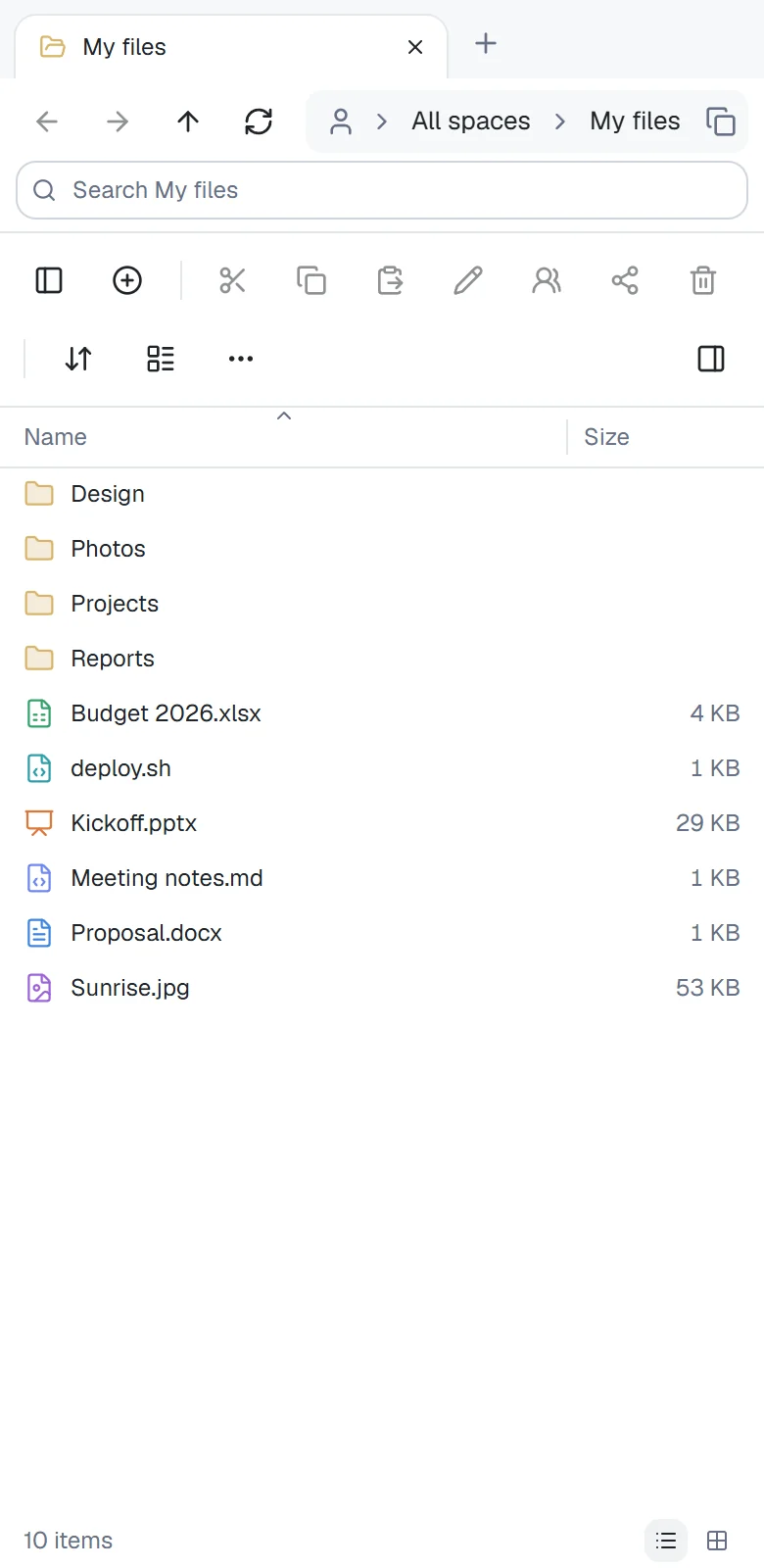
The same site works on a phone. Tap an item to open it, and use the buttons above the list for everything else.
- Select: hold your finger on an item for a moment. It's selected, and from then on a tap adds an item to the selection or takes it out. On a tablet, the menu for the selected items opens as well.
- Act on the selection: while items are selected, a bar at the bottom offers Download, Share, Move and Delete, and More for everything else (cut, copy, rename and the rest). × clears the selection. The toolbar above the list keeps to Navigation pane (the spaces and the folder tree), New, Sort, View, ··· and the details pane, with Paste while there is something to paste.
- Check boxes: turn on View › Item check boxes to show a check box on each item, in every view.
- Upload: choose New › Upload files or Upload folder.
- Address bar: a long path shows its end, the folder you are in. Swipe it to see the folders above.
- Home screen: add the site to your home screen (in Safari, Share › Add to Home Screen; in Chrome, Add to home screen or Install app). It then opens like an app, without the browser's bars, under your site's name and logo.